Asset UI
Display
To use different navigation modes and choose different view modes, use the top left menu.
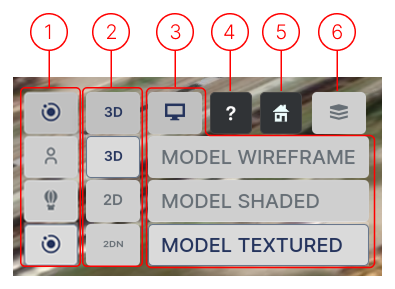
1. Navigation
How you interact with the 3D model on the screen:
- FPV: Walk on the surface of the model. Once selected, double-click on the model to begin. Use WASD keys to move and mouse left-click/drag to change view direction. Double left-click to teleport to a new location.
- FLY: Fly through the model. Use WASD keys to move, R & F to move up/down. Mouse left-click/drag to change view direction.
- Orbit (Default): Left-click pans camera. Right-click rotates camera around clicked point. Middle-click or wheel to zoom camera.
2. View Mode
- 3D view: Default view mode.
- 2D Orthographic: View mode where the camera is in orthographic mode.
- 2DN: A 2D orthographic mode with the top of the map always pointing north. Camera rotation is not possible.
3. Model Shading
- Model Wireframe: Displays only the polygon edges.
- Model Shaded: Ignores color information and displays grayscale coloring.
- Model Textured: Default mode that displays the model with its textures.
4. Help
Displays the navigation help window.
5. View Home
Moves the camera to bring the asset into view. Use this if you've lost sight of your asset.
6. Layers
For layer options:
- While viewing Assets: Layer Options for Assets
- While working on Projects: Layer Options for Projects